Bitbucket localization integration now available in LingoHub
Inside LingoHub

Table of content

Next to Github (click here to read how LingoHub handles that), the most popular file management environment for developers is Atlassian’s Bitbucket. We have worked some magic tricks behind the scenes the last few weeks, and we now offer smooth Bitbucket integration on LingoHub. For full localization resource file synchronization between your LingoHub project and Bitbucket, this allows for the most efficient localization integration also with this system.
How to set up Bitbucket integration
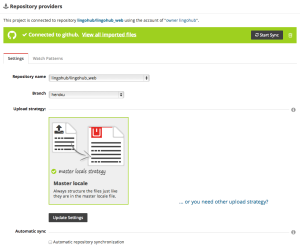
If you’re working with Bitbucket, setting up sync to LingoHub is very simple and works just like our Github integration, you can follow the instructions in our tutorial right here (click here to read more about integration workflows). The following screenshot shows the latest iteration of our UI at the point where you set up integrations from within your LingoHub project:
You start with the resource files section of your LingoHub project and select your desired integration method in the wizard.
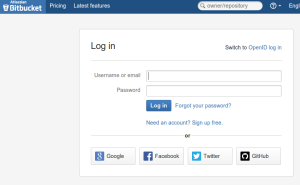
The next step is to authenticate with your Bitbucket/Atlassian account
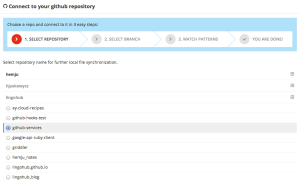
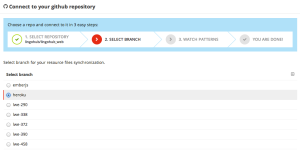
You will then be back in LingoHub and able to select a repository, and then a branch. You can change these later at any time.
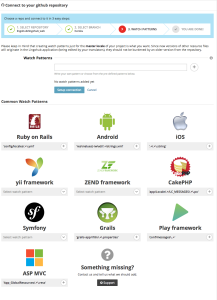
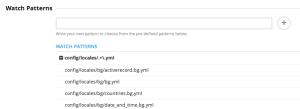
Next up select a watch pattern. This is necessary to let LingoHub know which files to watch. You can use pre-defined watch patterns or define your own using REGEX. If there are changes to your project, we will sync those with your LingoHub project, and for example, notify a translator of a changed text string that needs a new translation.
You can set your Bitbucket repository to sync with LingoHub manually or automatically. Let LingoHub worry about the rest, you’re now all set for automatic integration. You can go to the settings overview to change the parameters of your integration and its status at any time.
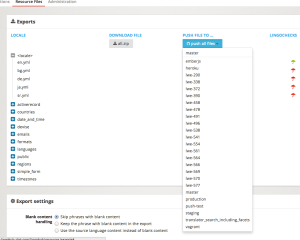
So what if you’re done translating? Go to the exports section of your project and download the resource files. A push-back to the repository (as LingoHub offers for Github integrations, and as you can see in the following screenshot) is not possible. Bitbucket does not provide that option in its API. So once downloaded, you need to push those separately back into your repository by hand or using a script. On the export page, you can also see the status of all your resource files. Download them in bulk or select individual files.
If you have further questions on Bitbucket localization integration, submit a ticket in our support desk and we’ll help you out. More in-depth documentation will follow soon.
GitHub love and integration
LingoHub has a GitHub integration for developers. We made changes to it recently and described the main steps of its usage in our blog.
How do TMS integrations help businesses achieve seamless localization?
Learn how integrated translation management systems streamline localization, reduce manual work, improve global SEO, and accelerate releases across markets.

Introducing Packages, Zendesk integration, and a new project wizard
Discover the latest LingoHub improvements, including Packages, a Zendesk integration, and an updated project wizard for smoother localization workflows.

Importance of branching and repository integrations in localization
Discover how LingoHub confidently implements branching for localization. Learn about branching capabilities and Git localization features in our article.
